This page will cover the process of how to add an instrument on VGOS.
¶ What you’ll need before you begin:
- Access to VECTO GRID OS
You need to be at least a “fleet administrator” level user to be able to add instruments to VGOS.
- The Instrument Serial Number
You’ll need the last 4/5 digits for the serial number (example MON000001234 or MON000010111)
- The Instrument’s “Meter Key”.
The key file ends with .key. The key can be found on the flash drive that came with the instrument.
- The IP address of the Instrument (in case of forward connection)
The instrument will either be connected to the substation network or the APN with a SIM card. This is an example of an IP address: 172.18.1.100
The IP address is only needed when VGOS will contact the instrument. If a reverse connection is setup in the instrument, then this is not needed.
¶ Step 1: Go to the “Instruments” section
Go to the “Admin Tab” -> and click on the “Instruments” sub-tab.
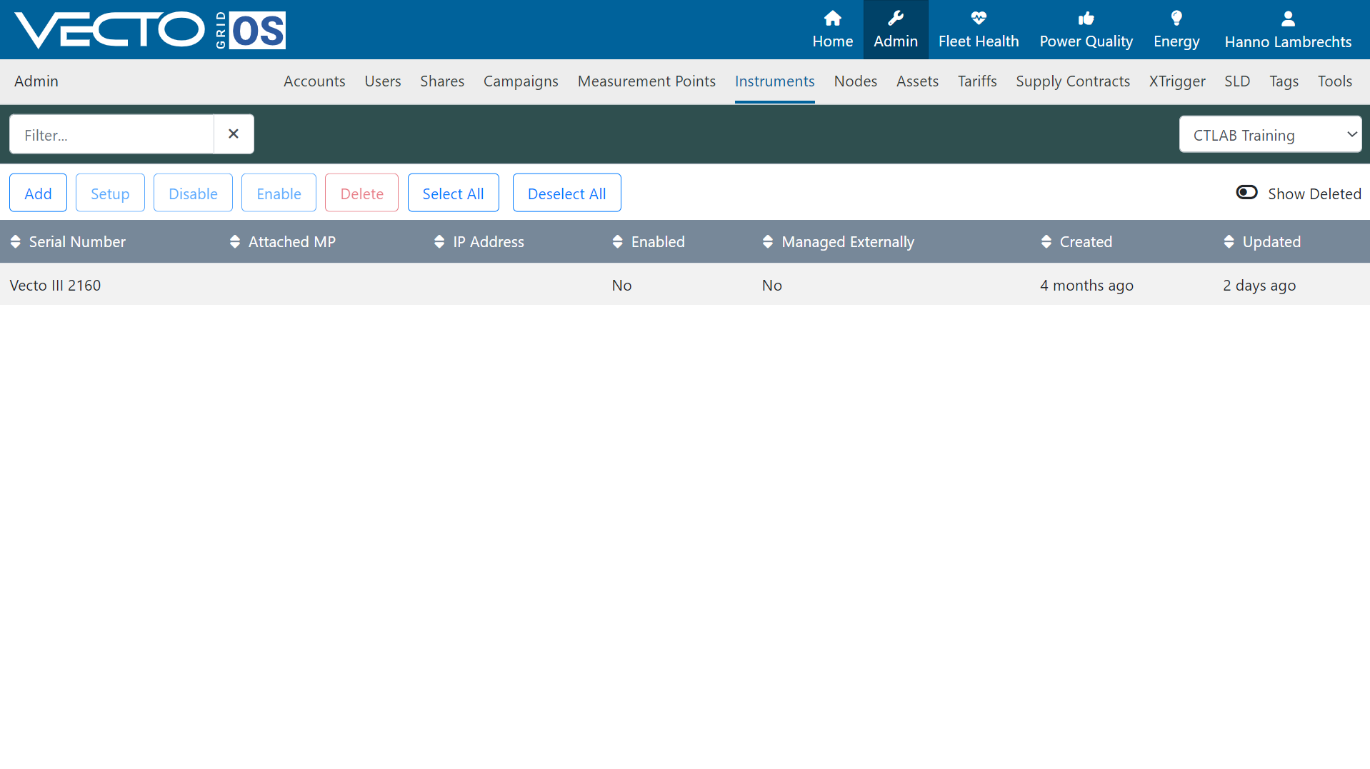
In this window, you’ll see all your instruments which are added for this account. After you added a new instrument, it will also show up in this window. You can also click on any instrument in this window and click “setup” to change the IP address or some other settings related to the instrument itself (not the measurement point configuration).
¶ Step 2: Click the “Add” Button
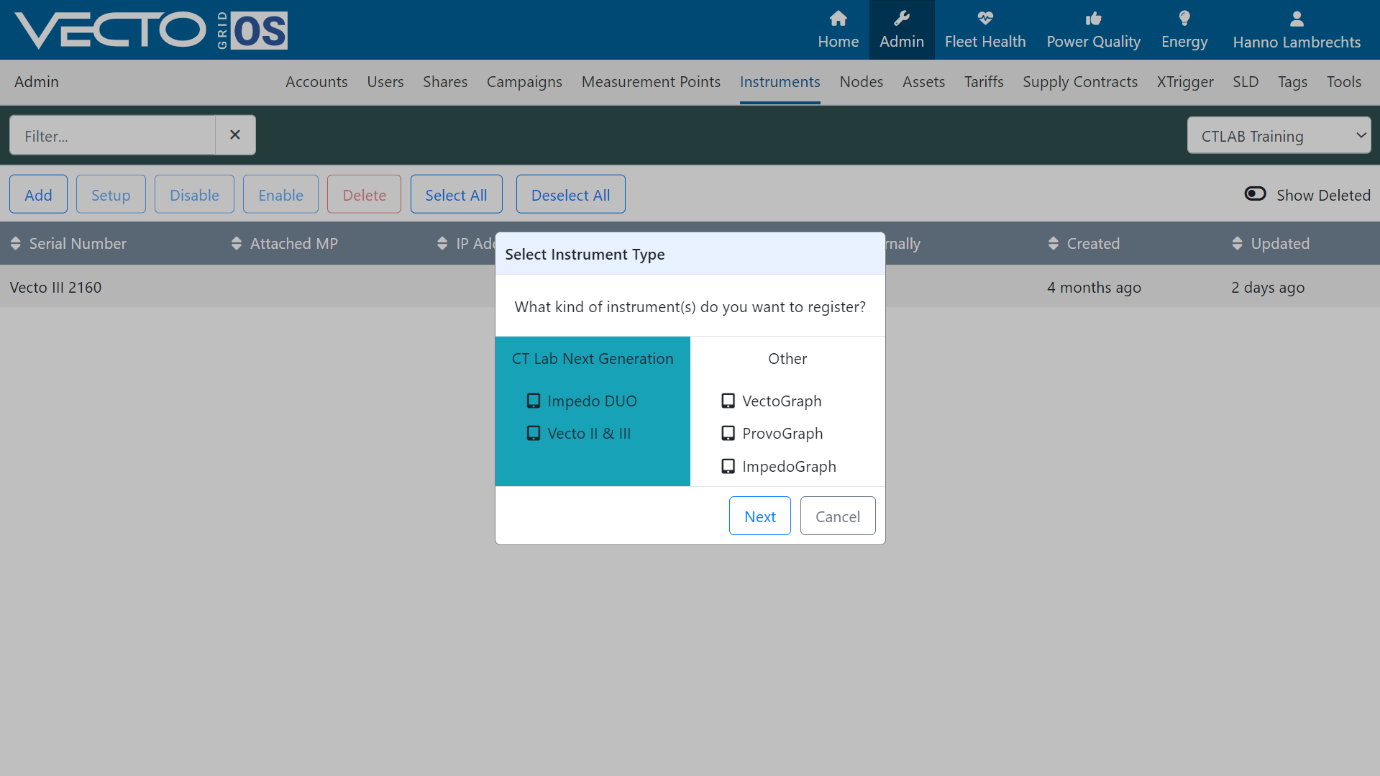
Click the "Add" button and then select the correct instrument to be added to VGOS and then click the "Next" Button.
¶ Step 3: Add Instrument Meter Keys
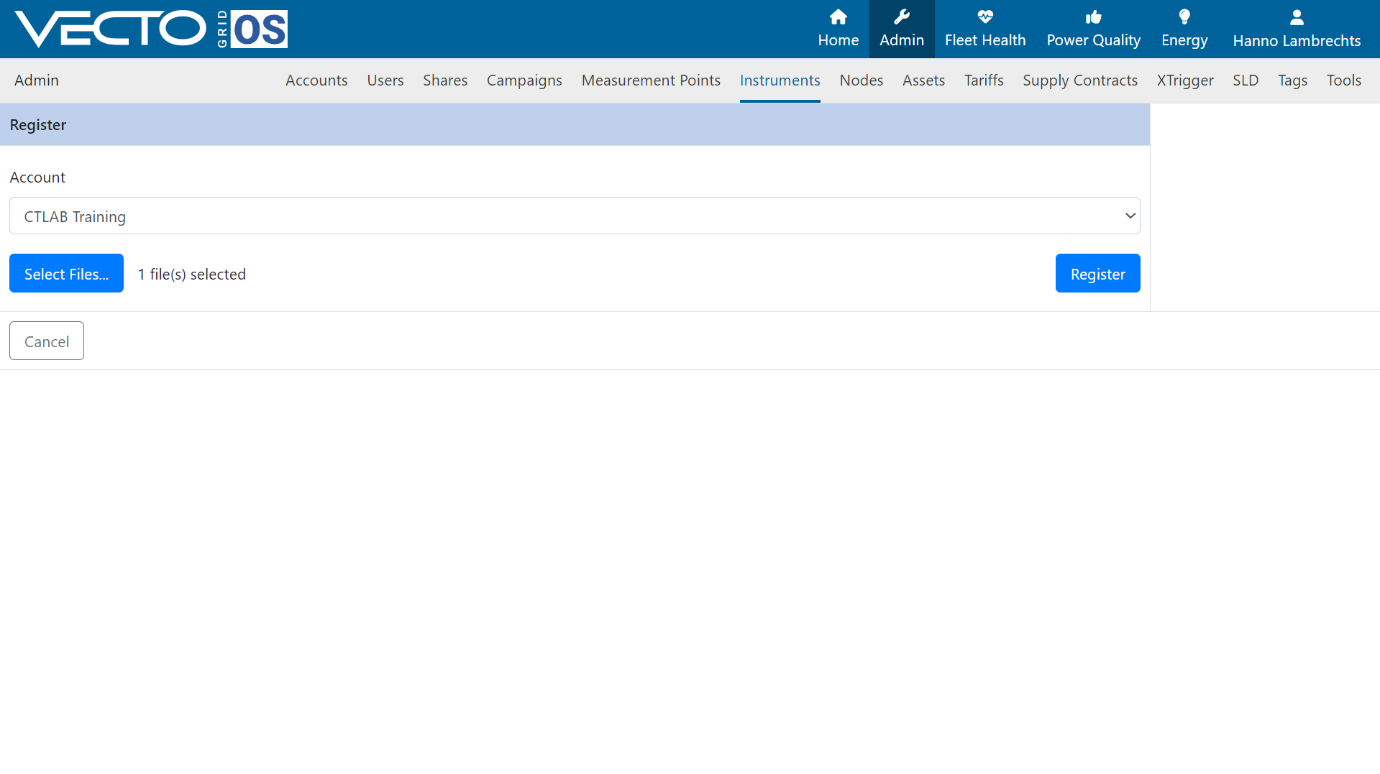
In this window you’ll add the instrument meter keys for the instruments you want to add to the system.
Click on the “Select Files” button and navigate to the location on your computer with the meter keys. Select one or more Meter Keys and click the “Open” Button
Then click the "Register" button.
¶ Step 4: Add instrument Communication Parameters
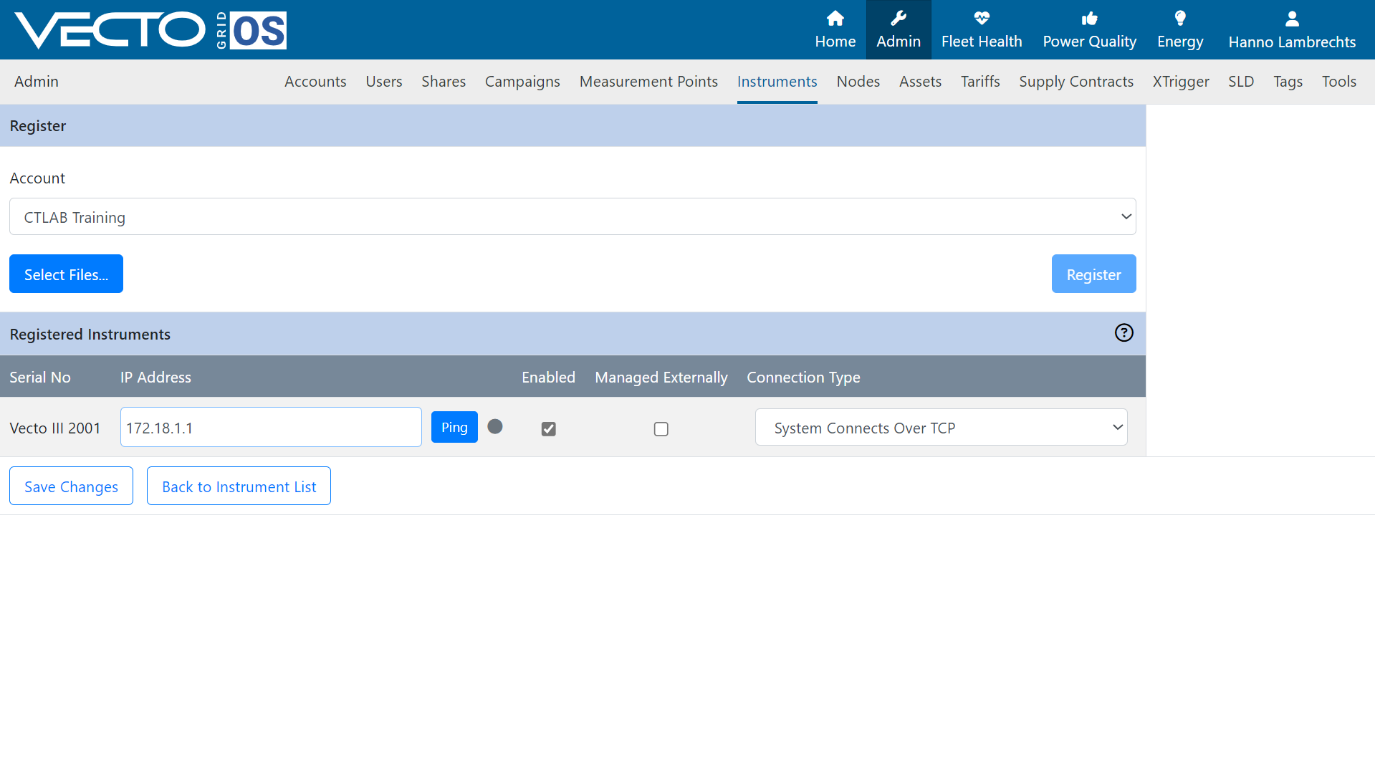
Choose a connection type:
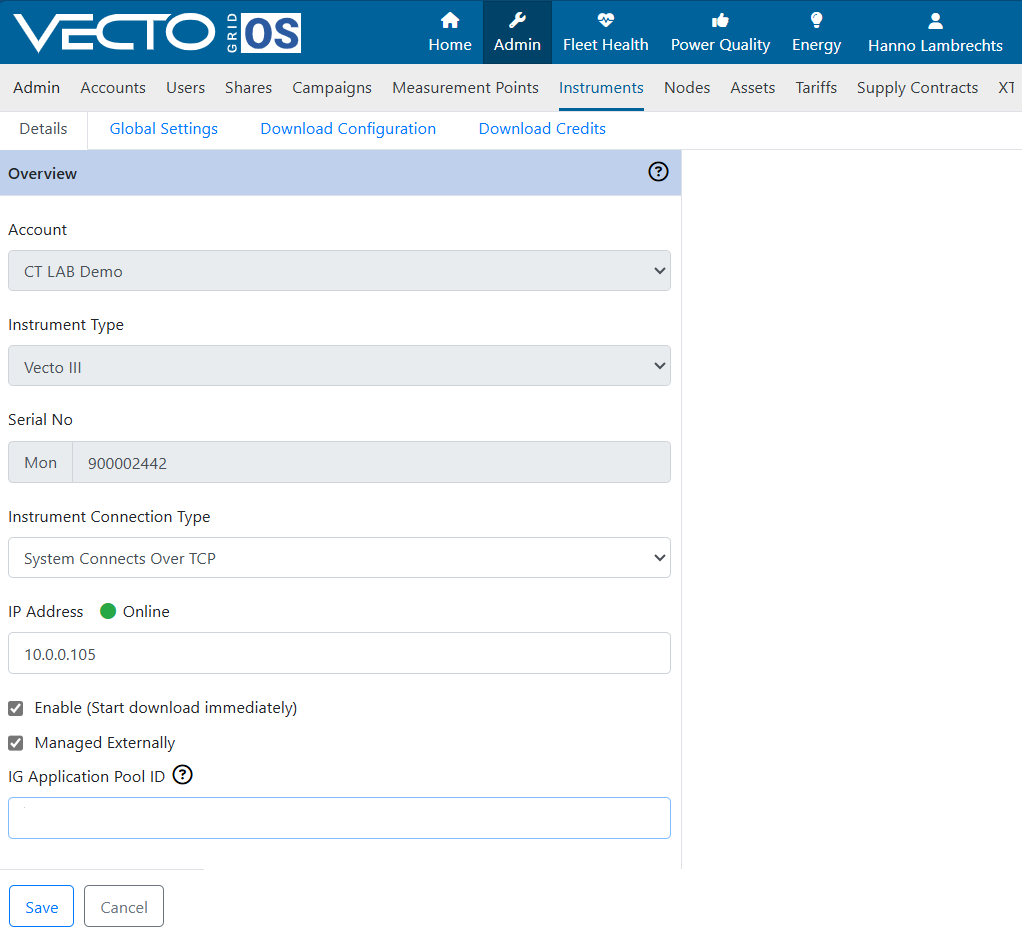
- System Connects Over TCP - VGOS will open the TCP/IP connection (the instrument connection details need to be known)
- System Connects Over XMPP - VGOS will open the XMPP connection (the instrument connection details need to be known)
- Instrument Connects Over TCP - The instrument will connect to VGOS and VGOS will not try to establish a connection to the instrument (the instrument connection details need not be known)
If the connection type is chosen, enter the required IP Address if applicable.
Once done click "Save Changes"
¶ Step 5: Complete
Your Instrument(s) will now be listed among the list of instruments with its respective serial number and IP Address.
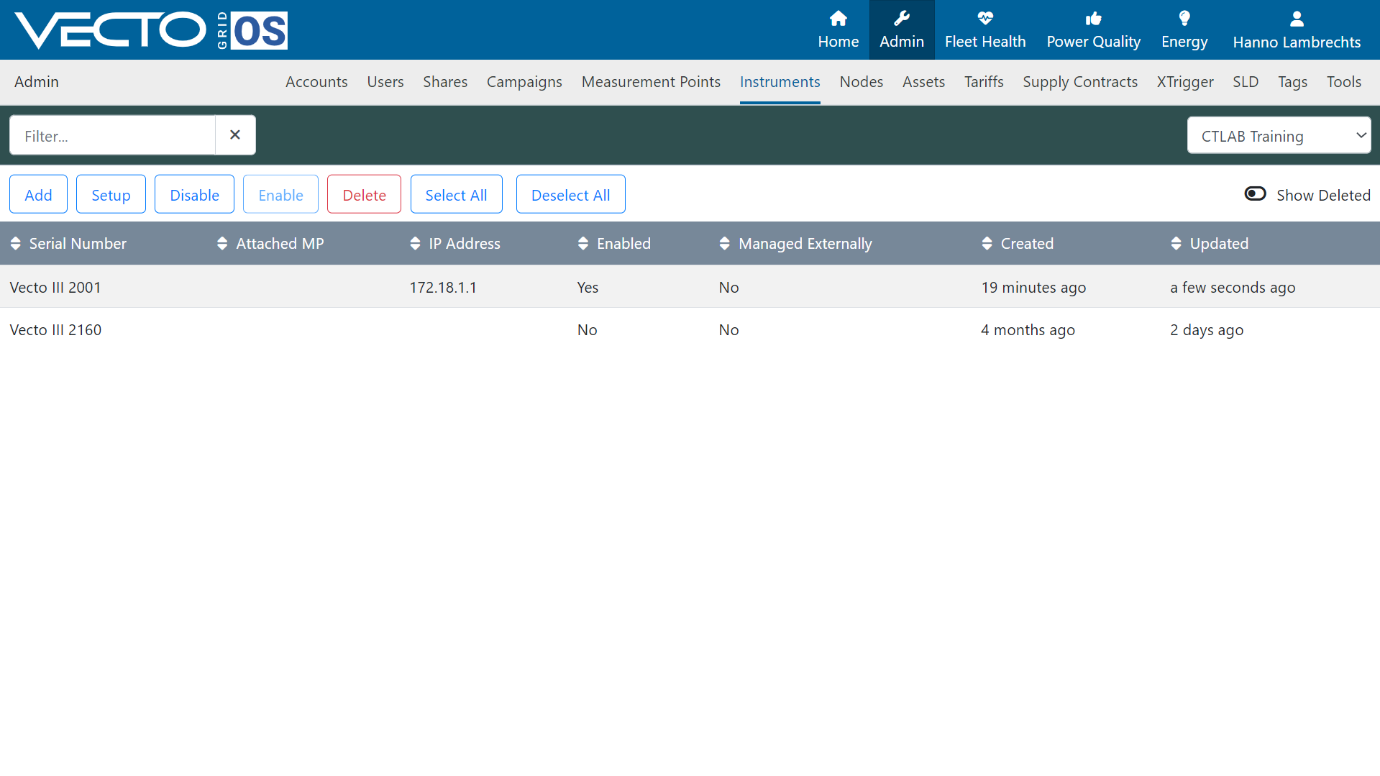
Your instrument is now added to VGOS. If the communication settings are correct, you can select your instrument in the list and click the "Setup" button. You should then see an "Online" label next to a green dot showing that the instrument is online and can be seen by VGOS.
¶ Add Measurement Point
If your instrument does not have a measurement point configured see Measurement Point Setup in VGOS to create and configure a measurement point.
Otherwise if your instrument already has a measurement point configured at the time when you add it to VGOS, the measurement point will automatically be loaded onto VGOS and no further configuration is necessary.